Alerts to Monitor Credit Limit
Stay alerts users to maintain the credit limit by configuring a threshold value for each authorization rule configured by the property. When the authorized amount collected from the credit card payment method associated with the default folio exceeds the threshold value, an indicator is displayed, and users can choose to re-authorize the amount for the payment method. The configured threshold value is applicable only to the credit card payment method associated with the default folio.
Feature Setting
-
Name: Threshold Limit Monitoring
-
Value: Must be enabled
-
Comments: License is not required
Configuring a Threshold Value
Users can configure a threshold limit for the authorization rule to be applied to the credit card payment method associated with the default folio of the reservation by entering a value in the Threshold field on the Edit Default Authorization Rule screen (Guest Accounting ➜ Credit Cards ➜ Default Rule) or the Edit Authorization Rule screen (Guest Accounting ➜ Credit Cards ➜User Created Rule).
When the available authorized amount for the credit card is less than the threshold value configured, that is, Available <= Threshold, the reservation is indicated as Threshold Exceeded.
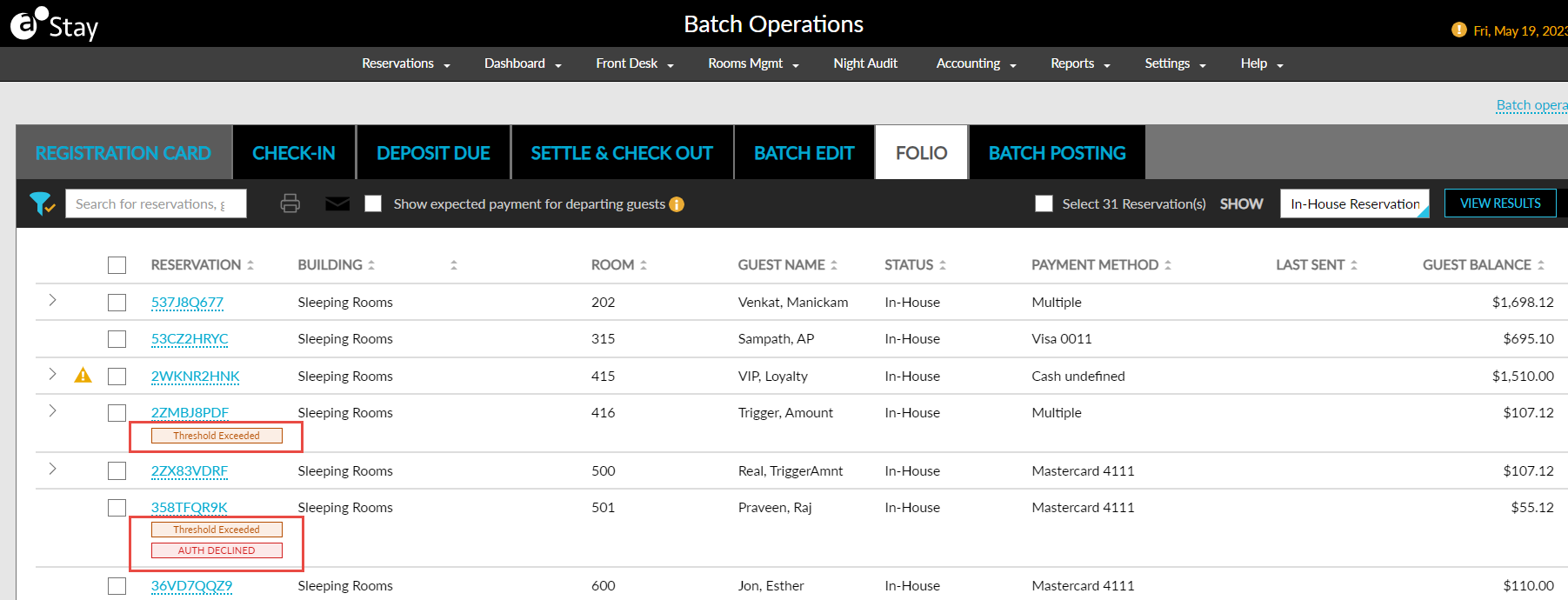
The Threshold Exceeded indicator is displayed for the reservation in the following screens:
-
On the Folio tab of the Batch Operations screen before the confirmation number of the reservation and next to the respective credit card.
-
Next to the confirmation ID of the reservation on the Search screen
-
Next to the confirmation ID of the reservation on the Batch Posting tab of the Batch Operations screen
The indicator is also displayed on the Credit Limit Report (Legacy).
Users can choose to re-authorize the credit cards with insufficient authorization. If the re-authorization fails due to some reason, an Auth Declined indicator is displayed for the reservation on the Folio tab of the Batch Operations screen and the following columns are updated:
-
Last Attempt
-
Reason
Bulk Authorization
Users can choose to perform bulk authorization for multiple reservations with insufficient authorization by clicking on More ➜ Authorized Cards on the Folio tab of the Batch Operations screen. Once the bulk authorization process is initiated, the following message is displayed as a banner on the Batch Operations screen: Bulk authorization in progress. Click here for the status. When users click the Click here hyperlink, the Authorization Process pop-up screen appears that displays a progress indicator for the credit cards being authorized.
When the bulk authorization is completed, the following message is displayed: Bulk authorization completed. Click here for details. X Success Y Failure, where,
X - Number of successful reservations for which authorization was increased.
Y - Number of failed reservations for which authorization was unsuccessful.
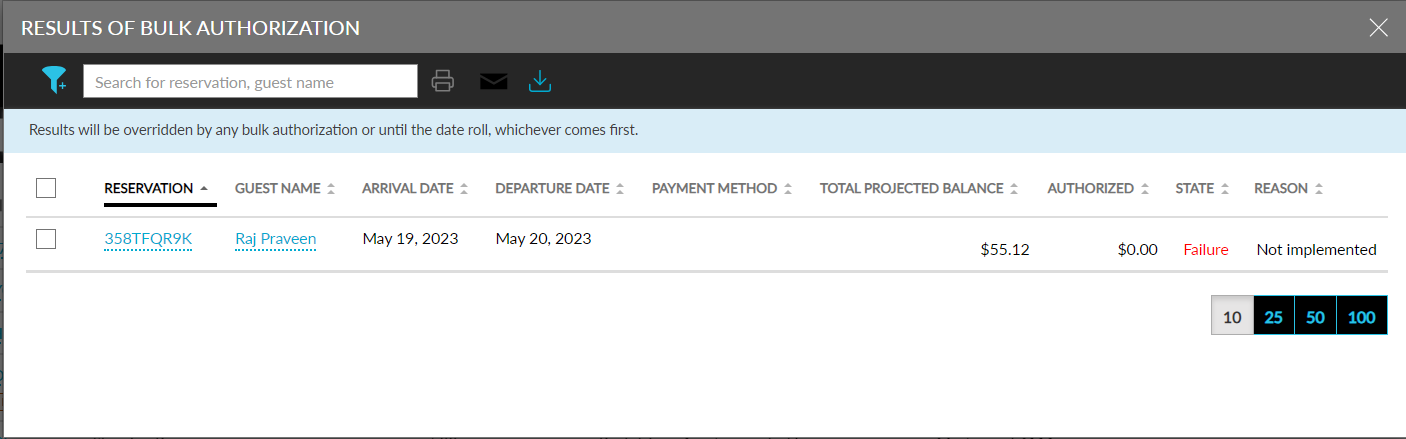
When users click the Click here hyperlink, the Results of Authorization screen appears that displays the following columns:
|
Field |
Description |
|---|---|
|
Reservation |
Displays the confirmation ID of the reservation as a hyperlink. When clicked, users are navigated to the respective reservation. This column can be sorted. |
|
Guest Name |
Displays the guest’s name associated with the reservation as a hyperlink. When clicked, users are navigated to the respective guest profile. This column can be sorted. |
|
Arrival Date |
Displays the arrival date of the reservation. This column can be sorted. |
|
Departure Date |
Displays the departure date of the reservation. This column can be sorted. |
|
Payment Method |
|
|
Total Projected Balance |
|
|
Authorized |
|
|
State |
|
|
Reason |
|
Users can search for a record using the reservation confirmation ID or the guest name. Users can also filter records by their state.
The results can be printed by selecting the reservations and clicking on Print. The results can be emailed by selecting the reservations, clicking on Email , entering the destination email address, and clicking Send. The results can be exported as a CSV file by clicking the Export icon.
Users can view the results of the bulk authorization that was last performed by clicking the View Results button on the Folio tab of the Batch Operations screen. This button is enabled only when there are results to be displayed.
The following fields and columns support this feature:
-
The field, Threshold, in the Edit Default Authorization Rule screen and the Edit Authorization Rule screen is an optional field that allows users to enter numeric values. If zero is entered, or the field is left blank it indicates that no threshold limit defined for the rule.
-
The In-house Reservations option in the Show drop-down list on the Folio tab of the Batch Operations screen is displayed and selected by default when the Threshold Limit Monitoring feature setting is enabled.
-
When the View Results button in the Folio tab of the Batch Operations screen is clicked, the Result of Authorization screen appears that displays the details of the bulk authorization last performed.
-
The following columns in the Folio tab of the Batch Operations screen are displayed even when the Threshold Limit Monitoring feature setting is disabled:
|
Column |
Description |
|---|---|
|
Arrival Date |
Displays the arrival date of the reservation and can be sorted This column is added next to the Guest Name column. |
|
Departure Date |
Displays the departure date of the reservation and can be sorted. This column is added next to the Arrival Date column. . |
|
Company |
Displays the name of the company associated with the reservation as a hyperlink.
|
|
VIP |
Displays the VIP name associated with the reservation. |
|
Loyalty |
Displays the loyalty program/programs associated with the reservation. |
-
The following filter options in the Folio tab of the Batch Operations screen allows users to filter records:
-
To Authorize - Users can enter the range of the amount in the From and To text box. If the user enters an amount in the From text box alone, any amount that is equal to or more than the entered amount is displayed. If the user enters an amount in the To text box alone, any amount that is equal to or less than the entered amount is displayed.
-
Company - Displays all the company profiles part of the reservation in the results.
-